Shadowrocket Setup Guide
Import an existing configuration, choose how traffic is routed, then verify the connection.
This guide follows the steps on iPhone and iPad. Start by connecting to and verifying one server before working with additional rules or automatic connection settings. You do not need to understand every option at once. The screenshots are official App Store images to help identify interface areas. Entry locations and available fields may vary; use the options shown in your current app as a guide.
Workflow: Home → Add Server / Subscribe → Global Routing → connection switch → Connectivity Test. If a step does not produce the expected result, stop and check that step before changing anything later in the workflow.
Add Server and Subscribe: Add existing connection details
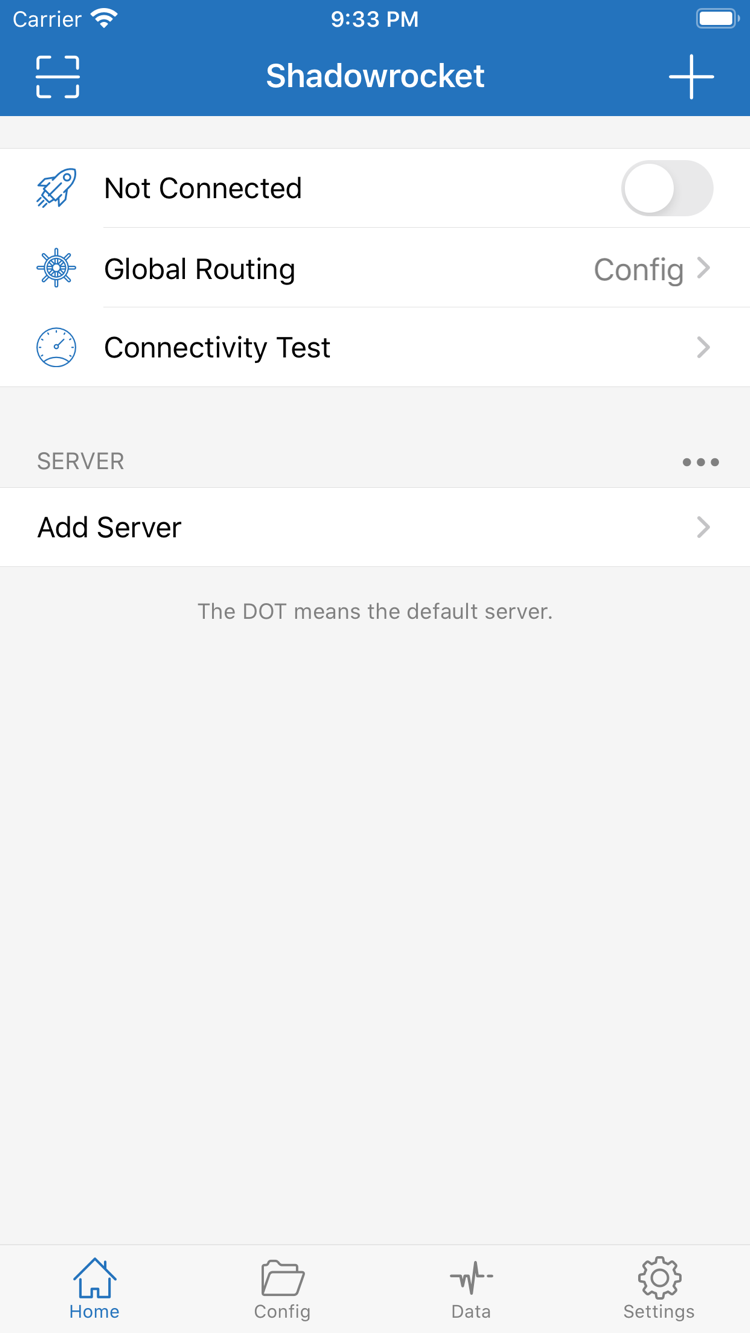
Open Shadowrocket and go to Home. Find the SERVER group near the bottom. A server entry stores the details needed to connect to a remote server; a subscription provides a way to retrieve and update a set of server entries. Both can add selectable entries to Home, but the setup process differs. First identify what you have: details for one server, a single share item, or a subscription link. Do not paste a subscription URL into Host.
Enter details manually with Add Server
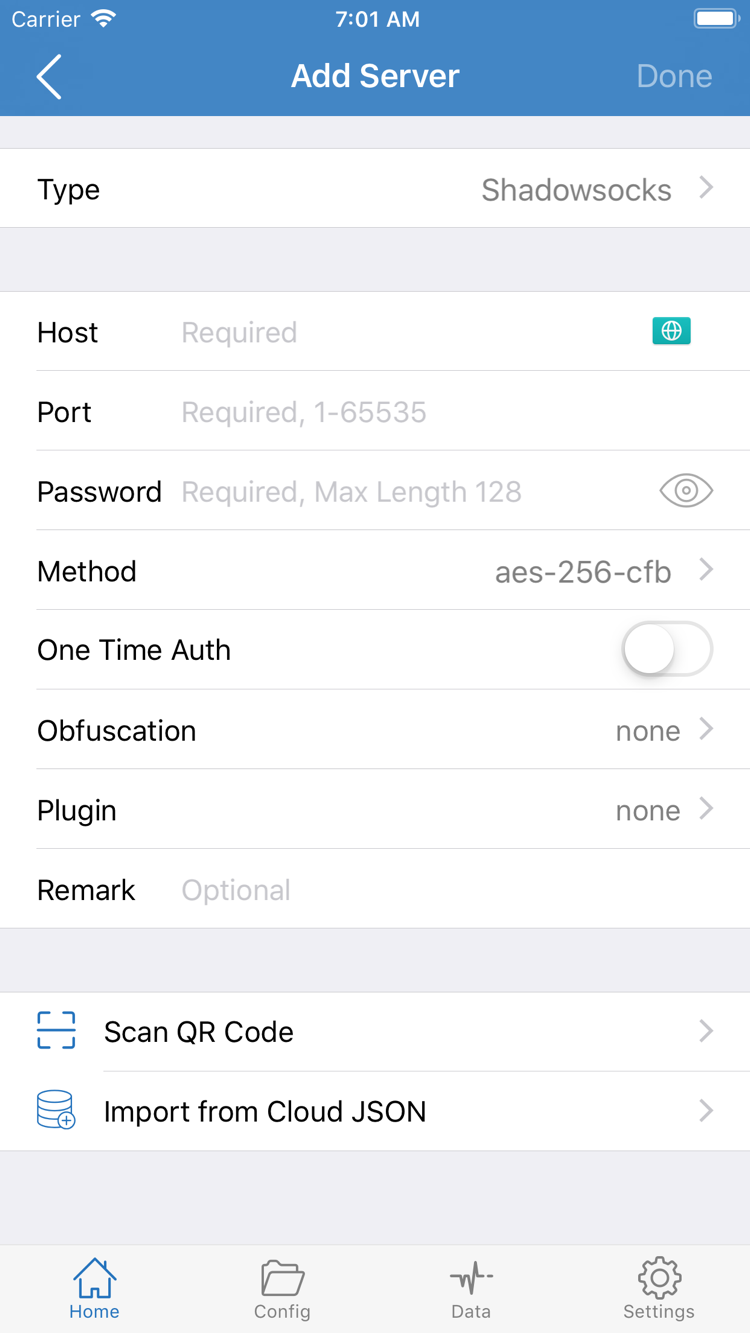
On Home, tap Add Server to open the server editor. Choose a Type, then fill in the fields required for that protocol. Changing Type may change which fields are needed. The official screenshot on the right shows one form with Host, Port, Password, and Method; these fields are not the same for every protocol. Match each field to the server details you have instead of filling every blank to match the screenshot.
Enter the server address in Host and the connection port in Port. Password, Method, and other authentication fields must match the details you were given. Enter TLS, Server Name, transport, or path settings when specified. Similar protocol names do not mean their parameters are interchangeable, so do not guess based on the name alone. Before saving, check for spaces, line breaks, or punctuation copied along with the values. Then return to Home and confirm that the entry appears in the SERVER group.
If you have a QR code, use Scan QR Code to read the existing connection details, then check the detected Type, Host, and Port. Import from Cloud JSON is a separate import option; use it only if you already have a JSON configuration designed for that option. Do not paste a regular subscription link there just because it is a URL. Importing only enters the details; you still need to select the server and connect in the steps that follow.
Import a subscription with Subscribe
If you already have a subscription link, open Config and look for Subscribe, then add the subscription source as prompted. If the current interface offers subscription types under Type in Add Server, select Subscribe there and enter the link. Paste the full link into the subscription URL field, save it, and run an update. This imports your existing subscription; it does not provide server access from this site. If menus are arranged differently, look for Subscribe and the field intended for the subscription URL.
When the update finishes, return to Home, expand the relevant group, and check for server entries. A group name without any servers does not mean the import is complete. Check that the link was copied in full, your access credentials are still valid, and no error appeared during the update. A subscription may contain multiple entries; for your first test, select one with clear, complete details rather than editing the whole group at once.
Subscription updates usually sync entries provided remotely; they are not a backup of your local settings. Names or details you changed manually may change during a later update, so keep the original information and avoid repeatedly deleting and reimporting the subscription. This step is complete when Home shows at least one selectable server with a clear source. For the difference between subscriptions, servers, and rule files, see the Quick Reference. Once the list looks right, continue to choose how traffic will be handled.
Global Routing: Config, Proxy, and Direct
After adding a server, return to Home and tap Global Routing to see the selected mode. This setting determines how traffic is handled; it does not fill in a server password or fix an expired subscription. Keep two things distinct: having an available server and choosing a policy for your traffic. This distinction will help you interpret the tests that follow.
- Config: Uses the currently enabled rule file. Different requests can be assigned to PROXY, DIRECT, or other defined policies, making this mode suitable when you already have a rule configuration.
- Proxy: Routes traffic handled by the client through the proxy policy. This can help you test the proxy route, but it still depends on the selected server and its details being correct.
- Direct: Handles traffic managed by the client as direct traffic. Use it to check access over your current network; selecting a server does not mean traffic will pass through that server in this mode.
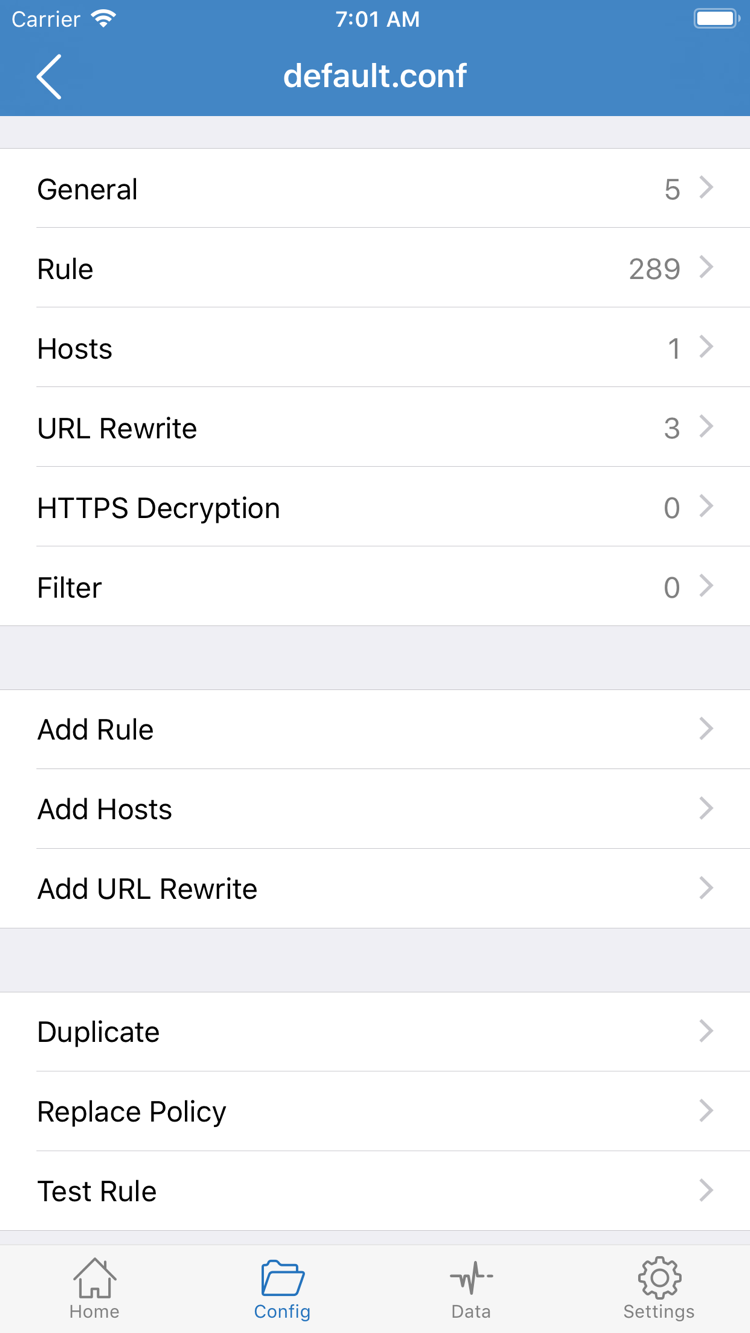
If you already have a rule file for your intended use, open Config and confirm that the file is enabled before choosing Config. Open the file to review sections such as General, Rule, and Hosts. The official screenshot shows the configuration editor, not the Global Routing mode selector. Seeing General or Rule only confirms that those sections exist; actual traffic routing depends on their contents and order.
Server subscriptions and rule files serve different purposes: the former provide server entries, while the latter determine how requests are matched and routed. Importing a subscription does not mean your rules are ready just because servers appear in the list. If you do not yet have a rule file you can verify, use Proxy for a controlled connection test. Once the server works, switch back to Config and check routing. Keep track of the selected mode during testing so you do not mistake a temporary test setting for your intended setup.
When reading rules, check the match condition first, then the policy. For example, DOMAIN-SUFFIX,example.com,PROXY matches a domain suffix and sends the request to PROXY. Here, example.com is only an example domain used to explain the syntax; it is not a connectivity service. FINAL,DIRECT sends requests to DIRECT when none of the preceding rules match and usually belongs at the end of the rules. Seeing PROXY in a file does not mean every request in that file goes through the proxy.
For your first setup, there is no need to edit DNS, Hosts, URL Rewrite, or HTTPS Decryption at the same time. Keep the contents of an existing trusted configuration, confirm that the enabled file is the one you expect, then save and return to Home. For a deeper explanation of protocol fields and transport settings, see the Protocol Reference. This guide focuses on the choices needed for your first connection. Before continuing, make sure you can identify the current mode and know whether the next test request is expected to use the proxy or Direct.
Home: Select a server and turn on the connection switch
After importing and setting Global Routing, return to Home and select the server you want to use in the SERVER group. Distinguish opening an entry for editing from selecting it: for this step, look for the selected dot or other selection marker next to the server, rather than simply opening its details. An entry's presence in the group does not mean it is selected. If you have multiple subscription groups, make sure you have not selected an old entry from another group.
Next, check that Global Routing is still set to the mode you chose in the previous step. Once confirmed, turn on the connection switch at the top of Home. On the first connection, the system may ask permission for Shadowrocket to add a VPN configuration. This is Apple's authorization flow for setting up a network connection. Check the app name in the prompt and follow the system instructions; your device may also ask you to authenticate locally. If you have not completed authorization, handle that prompt first, then check the status in the app.
VPN configuration authorization is different from subscription authentication: system authorization allows the client to establish a network tunnel, while server credentials determine whether the remote server accepts the connection. Approving the system prompt does not confirm that your server details are correct, and a correct server password does not replace device authorization. If you previously dismissed the prompt, try turning on the switch again and follow the current system instructions. Do not add duplicate entries repeatedly to work around the issue.
After authorization, return to Home and check whether the status at the top changes from Not Connected to a connected state and the switch remains on. The system's VPN indicator can provide a helpful clue, but it does not prove that websites are reachable. If the switch turns off immediately, the status keeps changing, or an error appears, note the error and go to Troubleshooting. For now, avoid changing multiple advanced options at once.
During connection, check whether another VPN configuration is already active or an automatic connection setting is changing the connection state. Keep the conditions simple for your first test: establish a stable connection with the manual switch before considering On Demand. Do not import more subscriptions just because the switch turned on; first complete the Connectivity Test and real-world visit in the next step to confirm that this server works.
The layout on iPad may vary with screen width, but the steps are the same: select a server on Home, check Global Routing, then turn on the switch. Use the selected state, authorization result, and connection status to confirm this step, not whether the screen matches the screenshot exactly.
Connectivity Test: Check that the connection and routing work
Once the connection is stable, tap Connectivity Test on Home and wait for the result. The test can help assess reachability under current conditions, but only for the target and method it uses. A successful test does not mean every website and app will work. A failed test must be considered alongside the selected server, test method, and current network; it does not by itself prove that the client is the problem.
Next, open a browser and visit a page you can normally access to confirm that the device has basic network connectivity. Then test a destination that should use the proxy under your current configuration. In Config mode, also test a destination expected to go Direct. In Proxy mode, this test mainly checks the proxy route and cannot tell you whether your rules are matching as expected. Successful access in Direct mode likewise does not show that the proxy server works.
For a useful comparison, keep the network, server, and destination the same and change only one condition at a time. After changing servers or Global Routing, retry the request; if needed, close and reopen the page to reduce the effects of existing connections and cached data. Do not change Wi-Fi or cellular, the server, DNS, and rules all at once. Otherwise, even if access recovers, it will be hard to tell which change made the difference.
To check routing, use the connection records or relevant logs available in the client to see which rule and policy matched a request. First check the request's domain, then whether it was assigned to the expected PROXY or DIRECT policy. Page load speed, a VPN indicator on the device, or a test value alone cannot establish where traffic went. Domains in logs and browsing history may contain personal information; redact them as needed before sharing.
If basic access works but a specific destination fails, first check its rules and DNS. If all access fails, start with the server and current network. Narrowing the issue to a specific layer is more useful than repeatedly switching the entire configuration. For more common issues, see the FAQ. You do not need to repeat the full import process to troubleshoot one destination.
Connection problems: Check the network, server details, mode, and rules
If the switch is on but you cannot access anything, keep the current configuration and error message; do not immediately delete every server. Describe exactly what is happening: does the switch fail to stay on, does Connectivity Test fail, or do only some pages fail to load? Note whether it happens on Wi-Fi, cellular, or both. This helps identify where to start and avoids repeating steps unnecessarily.
Check your network and server details first
Turn off the connection switch temporarily and check whether your current network allows normal access. If the device itself is offline, resolve the network sign-in, signal, or router connection issue before returning to the client. Once basic connectivity is restored, select an existing server and check its Type, Host, Port, and authentication details. For entries using TLS or a specific transport, verify those fields too; checking only the address and port is not enough.
If you use a subscription, check whether the most recent update actually succeeded and whether the server is still in the current group. If the subscription link has expired or access has changed, ask your service provider to confirm the status of your existing subscription. An app purchase does not mean the remote service is still available. If an update fails, keep the existing entries and check the error. Avoid creating multiple groups from the same source, which can make it hard to identify the selected server.
Narrow down the issue with Global Routing
If Config fails, temporarily switch to Proxy and retest with the same server and destination. If the destination works in Proxy but not Config, first check the enabled configuration file, rule order, and relevant policies. If both modes fail, check the server details and remote reachability. This comparison can help locate the issue, but a single result does not prove that any layer is working perfectly.
If a destination works in Direct but not Proxy, the two routes are producing different results. Check the proxy route; success in Direct does not confirm that the server works. After comparing results, restore the mode you originally intended to use. Keep track of any rule changes so temporary troubleshooting settings do not remain in your everyday configuration.
Check DNS, settings, and diagnostic records
Domain access failures may be related to name resolution, but DNS is not the answer to every connection problem. First check that the DNS settings in the enabled configuration match what you expect and whether they were recently changed, then review the error records. Do not try multiple addresses from unknown sources, or disable certificate verification to address authentication or server-detail errors.
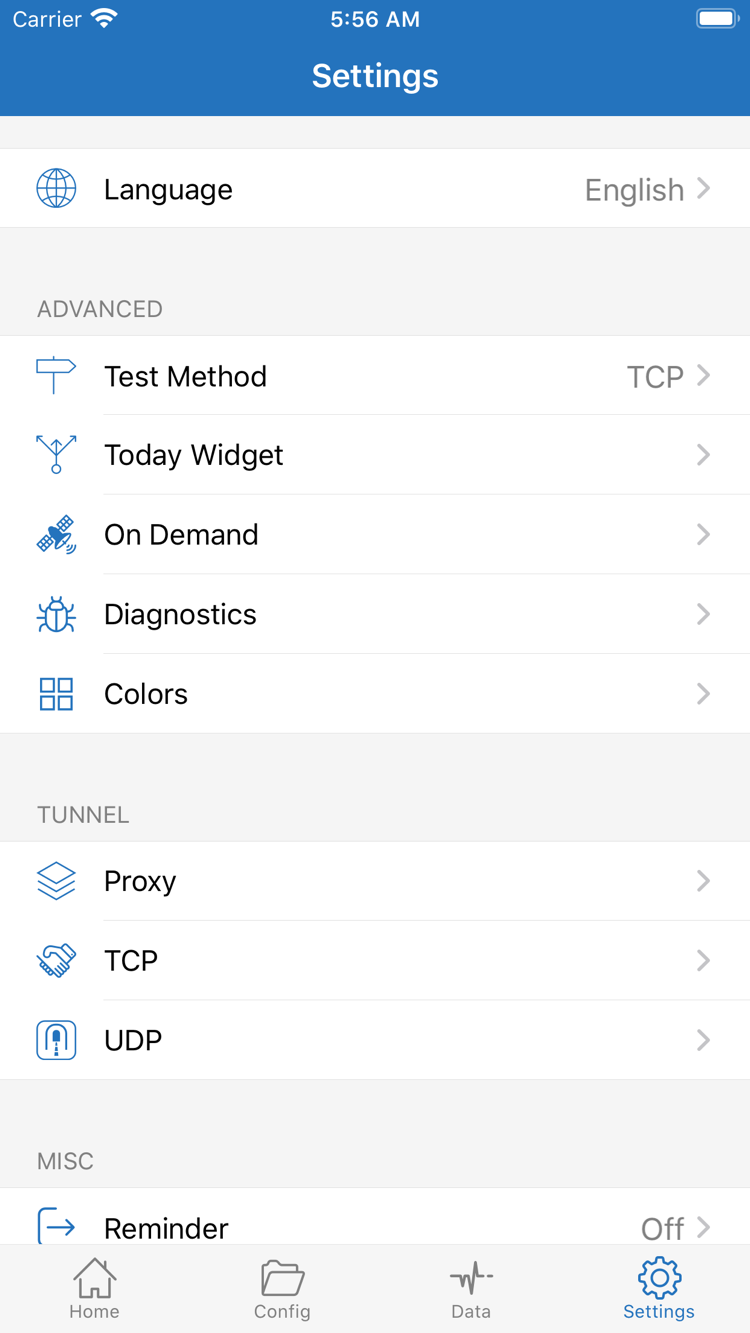
In Settings, you can find Test Method, On Demand, Diagnostics, and related options such as Proxy, TCP, and UDP. Review the available diagnostic items or records in Diagnostics and compare errors with the time you performed each action. If you change Test Method, results from before and after the change may no longer be comparable. Until your first manual connection is stable, avoid setting up On Demand at the same time, so automatic connection conditions do not complicate testing.
If the issue occurs only on a particular network or with a certain type of request, note those conditions and consult the Protocol Reference for the transport and parameter requirements of the protocol in use. For unfamiliar interface terms, see the Quick Reference. You do not need to change every advanced option. Follow a repeatable troubleshooting order: network → server and subscription → Global Routing → DNS and rules → diagnostic records.
When reporting an issue to your service provider, share only the necessary error text, protocol type, and conditions used to reproduce it. Before sending a screenshot, remove passwords, full subscription URLs, authentication identifiers, and other personal credentials. Once access is restored, run Connectivity Test and verify with a real-world visit, then note the server and mode that worked. Your first-time setup is complete when these checks confirm the result.